 TransposeAny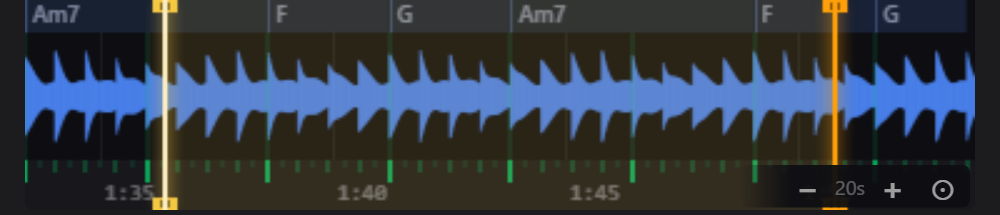
Find the chords: step by step
- Play a song in desktop ChromeInstall TransposeAny, open a YouTube song or lesson, and open the extension’s side panel. Pick a section with clear harmony, such as a verse or chorus.
- Let the passage playChord analysis works from audio the extension has heard. Let the section play through. If you jump ahead to an unheard passage, allow it to play before expecting its chord information. Analysis runs locally in your browser.
- Follow the readout and chord laneWatch the chord names as the passage plays. Use the waveform and chord lane to connect a change to the point where you hear it. Loop a short section if the changes move too quickly.
- Check the progression on your instrumentPlay the suggested chords against the recording. If one sounds wrong, listen to the bass and melody, try a simpler major or minor shape, and compare. Treat the result as a practice aid, not a finished transcription.
Example: test an Am7 → F → G passage
If the lane shows Am7, F and G, start with simple shapes and listen for where each change lands. Loop the transition from Am7 to F, then add G. Your goal is to hear the progression, not merely copy the labels.
This is a reading example, not a promised result for every song. A busy mix, passing notes, effects or an ambiguous voicing can make detection uncertain.
Use your ears to resolve uncertain chords
Listen for the bass first, then compare the major or minor quality. A detected chord name does not specify the exact guitar fingering, piano voicing or inversion. Reduce a complex label to a simple triad to get started, then add colour notes that you can hear. Slowing playback and looping one change can make this comparison easier.
See the practice panel in action
This 30-second product overview shows how loops, speed and pitch fit into a practice session. Follow the steps above for this guide’s specific exercise.
Common questions
Is every detected chord correct?
No. Automatic detection can make mistakes, especially with dense arrangements, weak harmony or unusual voicings. Check important changes by ear or against a trusted score.
Why is a section missing chord information?
The extension needs to hear the audio first. Play the missing region and give analysis time to populate it. An unplayed section is not an instant complete-song chord chart.
Is my audio uploaded for analysis?
Chord analysis runs in your browser. You do not need to upload the song or create an account to use the extension.
Do chord names follow a pitch change?
Detected chord names transpose with your pitch setting so the displayed names follow the shifted playback. Return Pitch to 0 st when comparing with the original recording.
Keep practising
Try it with a song you know.
Open this guide on your computer, install the free extension, and start with one short passage.
Get TransposeAny for ChromeRequires desktop Chrome. This extension is not affiliated with YouTube or Google.